

HP LaserJet Scan to Email Setup in 7 Steps
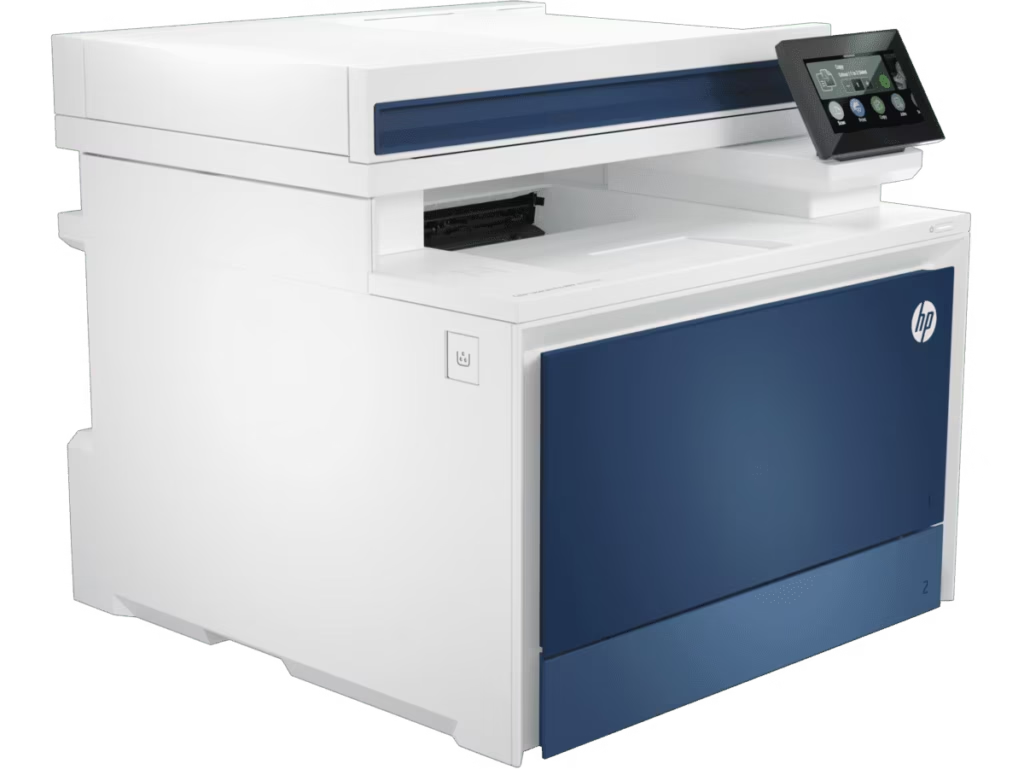
This article will show you how to Setup Scan to Email from your HP Laserjet Printer
Setting up Scan to Email can be a massive headache for office users, especially when dealing with modern security requirements like Multi-Factor Authentication (MFA).
This guide provides a foolproof, step-by-step walkthrough to configuring an HP LaserJet printer to send emails via a Gmail account.
Step 1: Prepare Your Gmail Account
Google no longer allows “Less Secure Apps.” To make this work, you must use an App Password.
-
Log into your Google Account.
-
On the left menu, click Security.
-
Ensure 2-Step Verification is turned ON. (This is mandatory).
-
Click on 2-Step Verification, scroll to the very bottom, and select App Passwords.
-
In the “App name” field, type “Printer” and click Create.
-
Important: A 16-character code in a yellow box will appear. Copy this code now. You will not see it again, and this is the “password” you will use on the printer, not your regular Gmail password.
Step 2: Access your HP Laserjet’s Web Interface
You don’t need to touch the printer’s small screen for the heavy lifting; it’s easier to do this from your computer.
-
Find your printer’s IP Address (e.g.,
192.168.1.50). You can find this by printing a Network Configuration page or checking the Wi-Fi/Ethernet settings on the printer screen. -
Open a web browser (Chrome, Edge, etc.) and type that IP address into the address bar.
-
If you see a “Your connection is not private” warning, click Advanced and then Proceed to [IP Address].
-
If prompted for a PIN, it is usually located on a sticker inside the cartridge access door or on the back of the printer.
Step 3: Configure SMTP Settings
Once you are in the HP Embedded Web Server (EWS):
-
Navigate to the Scan tab at the top of the screen.
-
On the left sidebar, click Scan to Email and then Outgoing Email Settings.
-
Click Add or Edit to configure the profile.
-
Enter the following technical details exactly:
| Setting | Value |
| SMTP Server | smtp.gmail.com |
| SMTP Port | 465 (SSL) or 587 (TLS/StartTLS) |
| Always use secure connection | Check this box (SSL/TLS) |
| Authentication | Select “Server requires authentication” |
| User ID / Username | Your full Gmail address (e.g., office@gmail.com) |
| Password | The 16-character App Password from Phase 1 |
__PRESENT
Step 4: Set the “From” Address
-
Under User Defined From, enter the email address you want to appear in the “From” field when someone receives a scan.
-
Tick the box for Save and Test (or similar).
-
The printer will now attempt to contact Google. If it says “Test Successful,” you are finished.
Still Seeing Errors? We Can Handle It For You
Technology is supposed to save you time, not take up your entire afternoon. If you’ve followed these steps and things still aren’t clicking—or if you simply have better things to do than troubleshoot printer ports—we’re here to help.
Setting up a scanner is often just the tip of the iceberg. Our team specializes in managing the “heavy lifting” for local businesses, from securing your office Wi-Fi and setting up automated backups to being your on-call IT department.
How we can help:
-
One-on-One Support: We can jump in and finish this setup for you remotely or on-site.
-
Ongoing Management: Let us proactively manage your printers, computers, and network security so you never have to deal with “App Passwords” again.
-
Future-Proofing: We ensure your systems are scaled correctly as your team grows.
Click here to Contact us or Call Us today to get this resolved, or to chat about how we can take the stress of IT off your plate for good.