

How to Reset Outlook View: Restore Your Message List to Default
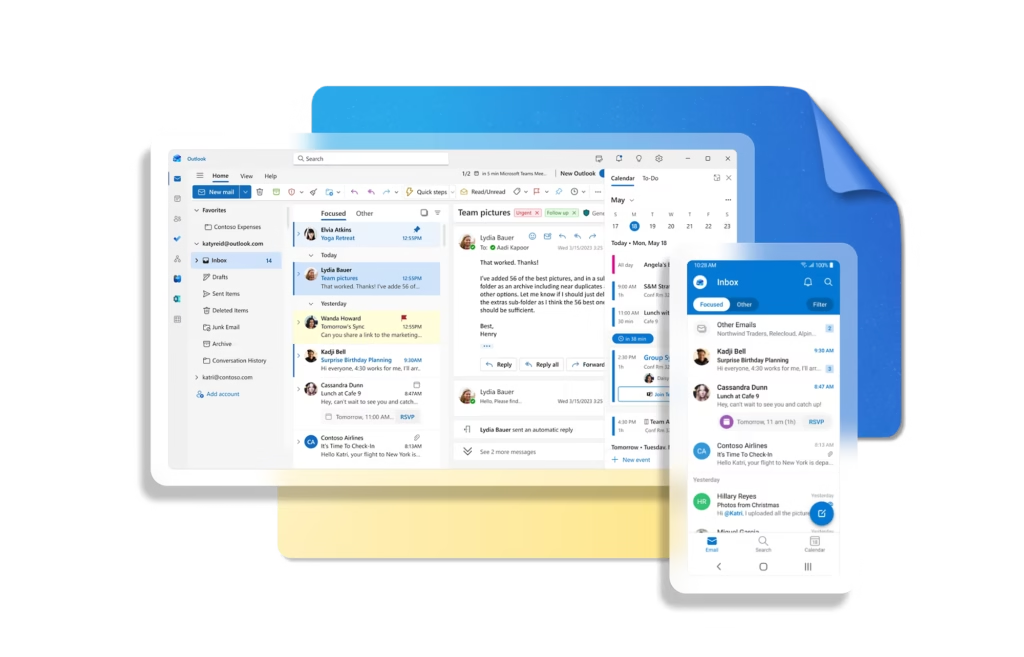
Follow these simple steps to fix your Outlook display settings instantly
__PRESENT
__PRESENT
If your Microsoft Outlook inbox suddenly looks cluttered—with extra columns, missing dates, or compressed text, you can easily restore it to the clean, organized layout. This often happens when “Single View” or a custom column set is accidentally triggered.
Step 1: Open the View Tab
Launch Microsoft Outlook and click on the View tab located in the top navigation ribbon. This menu contains all the essential tools for managing your inbox layout and folder pane settings.
Step 2: Use the Reset View Command
Within the View tab, locate the Current View group on the far left. Click the Reset View button. A confirmation dialog will appear; select Yes to discard all custom view settings and return the folder to its default appearance.
Step 3: Change View to Compact
If the layout remains in a “Single” or “List” format, click the Change View button in the ribbon. Select Compact from the drop-down menu. This is the standard layout that displays the sender, subject line, and a brief preview in a streamlined, multi-line format.
Step 4: Configure the Reading Pane
To ensure your messages are easy to read alongside your inbox list, navigate to the Layout group. Click Reading Pane and select Right. This docks the email content to the right side of the screen, maximizing vertical space for your message list.
Step 5: Adjust Message Preview Lines
To further clean up the interface, click Message Preview in the View tab. You can choose 1 Line, 2 Lines, or Off. Selecting 1 Line typically provides the cleanest look while still offering context for each incoming email.
Step 6: Apply to All Folders (Optional)
If you want this clean layout applied across your entire mailbox, click Change View again and select Apply Current View to Other Mail Folders. Check the boxes for the folders you wish to update and click OK.
Still Seeing Errors? We Can Handle It For You
Technology is supposed to save you time, not take up your entire afternoon. If you’ve followed these steps and things still aren’t clicking—or if you simply have better things to do than troubleshoot printer ports—we’re here to help.
Setting up a scanner is often just the tip of the iceberg. Our team specializes in managing the “heavy lifting” for local businesses, from securing your office Wi-Fi and setting up automated backups to being your on-call IT department.
How we can help:
One-on-One Support: We can jump in and finish this setup for you remotely or on-site.
Ongoing Management: Let us proactively manage your printers, computers, and network security so you never have to deal with “App Passwords” again.
Future-Proofing: We ensure your systems are scaled correctly as your team grows.
Click here to Contact us or Call Us today to get this resolved, or to chat about how we can take the stress of IT off your plate for good.
__PRESENT__PRESENT__PRESENT__PRESENT